JetSign: Fill & Sign PDF Forms
- 4.7
- Rating
- 1.00M
- Installs
- Free
- Price

 Analysis by App-foxy
When a document needs a signature immediately, the real problem is rarely the signature itself. It is finding the file, opening it in a useful format, placing the mark in the right spot, getting the other person involved, and returning a clean copy without losing track of the original. I found JetSign: Fill & Sign PDF Forms most useful in exactly that kind of situation: a practical business app for moving a form from an unfinished document to a signed PDF.
My first impression was that JetSign is built for speed rather than ceremony. It does not try to turn signing into a large document-management project. The focus is narrower and more approachable: fill forms, sign documents, involve remote signers, and send the finished file as a PDF. That makes it especially appealing when I need to complete one agreement or form from a phone instead of waiting until I am back at a computer.
The app comes from JetSign and is free to install, with optional purchases ranging from $4.99 to $299.99 per item. It is rated for Everyone, works on Android 8.0 and later, and the current version is 2.7.9. Those details make it accessible to a broad range of users, although the purchase range is worth keeping in mind before using it for a larger or more frequent workflow.
You May Also Like

 Blood Strike: 2.5 Anniversary
Blood Strike’s Loadouts Turn Every Drop Into a Tactical Gamble
A close look at Blood Strike’s custom loadouts: how fast access to signature weapons reshapes its battle royale rhythm, rewards preparation, and narrows the gap between fights.

 Pandora - Music & Podcasts
Pandora’s Music Is Easy to Start, but Harder to Recover
Pandora’s strength is its low-effort path from a seed to a station. Its weak spot is how much confidence it asks you to place in connection, setup, and quiet recovery.

 8 Ball Pool
 Is Built on Rivalries, Rematches, and Routine
A close look at the rivalries, rematches, shared routines, and unanswered safety questions that turn a quick pool match into a persistent mobile community.

 Samsung Music
’s Quiet Strength Is Playing What You Already Own
Its reach comes less from spectacle than from dependable access to a personal library. That simplicity is both the app’s strongest retention engine and its ceiling.

 AccuWeather: Weather Radar
AccuWeather Review: A Quick, Clear Forecast for Everyday Decisions
For everyday plans, the best forecast is the one you can understand quickly. AccuWeather makes rain timing, radar, and local conditions easy to act on, with a few trade-offs.

 Hill Climb Racing
Why Hill Climb Racing Still Turns Crashes Into One More Run
A tiny car, a bumpy hill and one more upgrade: Hill Climb Racing keeps resurfacing because its simple chaos makes every near-miss feel personal.
More From Our News Desk



From an unfinished form to a completed PDF
I begin with the document itself: what needs filling, who needs to sign, and whether the file is ready to share. That quick check helps me avoid sending a draft or overlooking a field, and it sets up the next step: deciding who should handle the form on a shared device.
Starting with the document you already have
A realistic use case is a small business owner receiving a supplier form by email while away from the office. The document may contain blank fields, a signature line, and a deadline that makes printing, signing, scanning, and emailing it back feel unnecessarily slow. With JetSign, I would begin by bringing that document into the app and treating the phone as the working desk.
The important advantage is not simply that a signature can be drawn on a screen. The useful part is having the form and the signing action in the same workflow. Instead of switching between a PDF viewer, a separate annotation tool, a scanner, and an email app, I can concentrate on completing the document itself. That reduces the chance of returning the wrong attachment or forgetting one of the empty fields.
I also like the fact that the app is aimed at both forms and Word documents. That gives it a more practical range than a tool designed only for already-finished PDFs. In everyday work, documents do not always arrive in one consistent format. A client may send a PDF, while a colleague may send a Word file that still needs a little preparation before it is signed.
My advice is to inspect the document before adding anything. Check how many pages it has, locate every required field, and decide whether the signature belongs to you or someone else. This small pause matters because a quick signing tool can make it easy to focus on the visible signature line while overlooking a date, name, initials, or other blank area elsewhere in the file.
Filling fields without losing the original context
Once the file is open, the next stage is completing the form. This is where JetSign is more useful than a basic image-based signature utility. A signature alone does not make a form complete. Names, dates, addresses, checkboxes, and other entries often matter just as much, and the app is designed around filling as well as signing.
I would work through the pages in order rather than jumping straight to the final signature. On a small phone screen, it is easy to miss a field near the edge of a page or mistake a line in a table for a completed entry. Zooming in before placing text is also a sensible habit, particularly when the form uses compact spacing or several similar lines close together.
One non-obvious strength of this workflow is that it encourages a clean distinction between editing and approving. I can first enter the factual information, then review the document as a whole, and only afterward add the signature. That sequence is safer than signing immediately and discovering later that a key field was left blank or typed incorrectly.
There is still some friction compared with editing a document on a full computer. Phone-based form filling depends heavily on the original layout. A well-structured form should be manageable, but a crowded document can require careful positioning and repeated zooming. I would not choose this as my first option for a long contract that needs extensive rewriting; it is better suited to completing an existing form than transforming the document itself.
Adding a signature with the right level of care
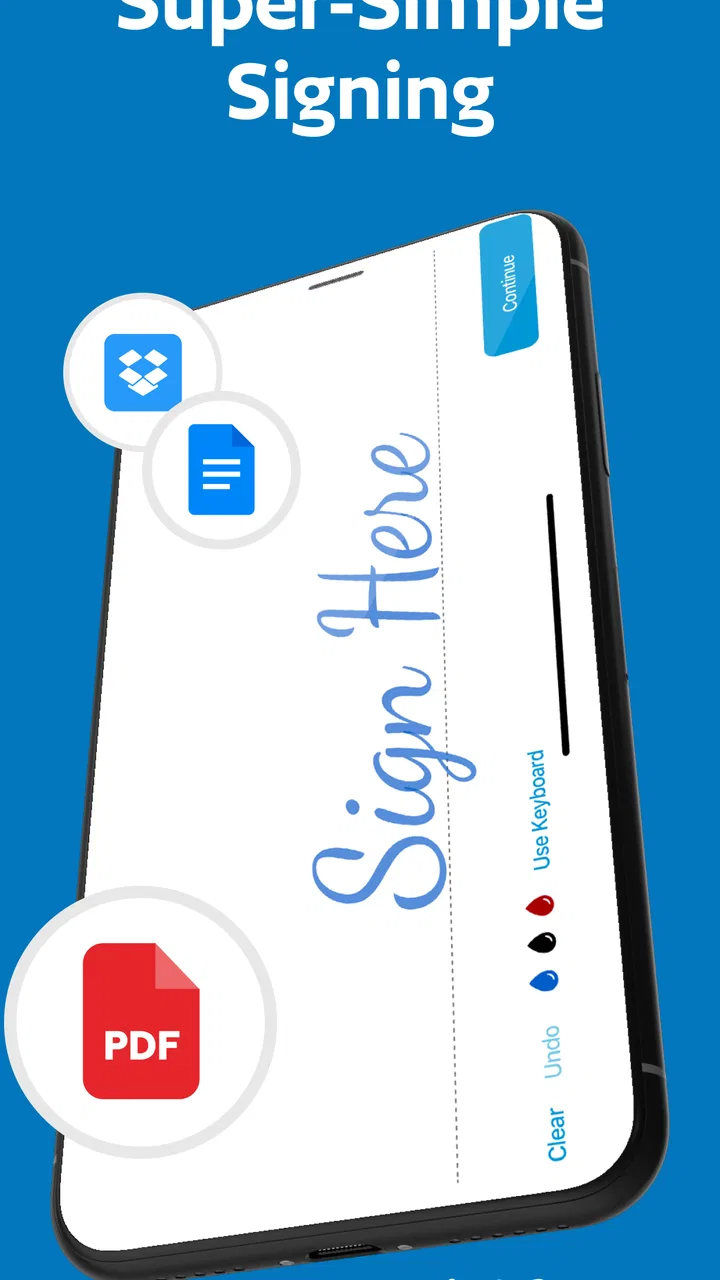
When the form is ready, the signature step feels straightforward, but I would not treat it as a casual scribble. The signature needs to sit inside the intended area without covering nearby wording or becoming so small that it looks disconnected from the line. On a touchscreen, a slow and deliberate gesture usually produces a more usable result than trying to imitate a handwritten signature at full speed.
The practical benefit here is convenience. I do not need to print the document, sign it with a pen, photograph it, and hope the image is readable. A digital signature keeps the rest of the document in its original digital form, which is helpful when the recipient needs to archive, forward, or process the returned PDF.
At the same time, I would separate convenience from legal suitability. Not every document or organization treats every electronic-signing method in the same way. If the recipient has specified a particular signing process, identity check, or approved platform, that requirement should take priority over personal preference. JetSign is convenient for ordinary signing tasks, but convenience alone should not decide a high-stakes legal or financial workflow.
This is also a good point to check the completed page at normal viewing size. A signature that looks acceptable while zoomed in may overlap a border or another field when the whole page is visible. Reviewing both close-up and full-page views is a simple quality-control step that can prevent an embarrassing resubmission.
Bringing in a remote signer
One of the more useful parts of JetSign is the ability to add remote signers. That changes the workflow from “I sign and send the file” to “I prepare the document and hand it to the next person.” For a two-person agreement, this can remove a surprisingly awkward chain of downloading, signing, renaming, attaching, and explaining where the second signature belongs.
A realistic example would be a freelancer completing the client information first, then sending the document onward for the client’s signature. The freelancer does not need to ask the client to print the form or describe the exact line to use. The handoff is built into the purpose of the app, which makes the document easier to move between participants.
Before sending anything onward, I would confirm that the document contains only the information the other signer needs to see. This is an important workflow habit rather than a special feature: a remote handoff is also a moment to check for internal notes, unfinished fields, or an outdated version of the form. Preparing the file carefully before inviting another signer saves more time than rushing into the handoff.
The trade-off is that every additional participant introduces another possible delay. The app can help organize the act of sending a document for signature, but it cannot make a busy recipient respond immediately or resolve a disagreement about the wording. If the other person needs to negotiate several clauses, JetSign is no substitute for a proper discussion and document revision process.
Sending the finished document as a PDF
After the necessary signing steps are complete, the intended outcome is a PDF that can be returned or shared. That format is useful because it preserves the document as a finished record rather than leaving the recipient with an editable working file. For ordinary business exchanges, a PDF is often the most convenient compromise between readability and portability.
I would rename the completed file clearly before sending it, using a name that identifies the document and its status without relying on memory. I would also open the final PDF once more and check the pages, fields, signatures, and overall appearance. This final inspection is especially valuable when the file has passed through more than one signer.
That review step is one of the best ways to get value from JetSign. The app can shorten the mechanical part of signing, but the user still controls the quality of the result. A fast digital workflow is only successful if the returned file is complete, legible, and the correct version.
Where handoffs feel smooth and where they do not
JetSign makes the most sense when the document follows a fairly linear path: receive it, fill it, sign it, involve another signer if needed, and send the PDF onward. That flow matches the needs of independent professionals, small teams, tenants, clients, and anyone who regularly handles routine forms without a dedicated document system.
The handoff is less comfortable when several people need to edit the same document, comment on individual clauses, or work through multiple revisions before signing. In that situation, a collaborative office suite or a more specialized contract platform may be better. Those alternatives are usually designed around discussion, version control, and broader administration, while JetSign is more focused on getting a document signed.
I would also be cautious with sensitive material until I understand the workflow that suits my organization. A business may have its own rules for storing, sharing, and approving signed files. JetSign can be a practical signing tool, but it should fit inside those rules rather than replace them. For a casual form or straightforward agreement, that may be easy; for regulated or highly confidential work, the surrounding process matters just as much as the app.
What the app is like in regular use
The strongest quality I noticed is its focused purpose. JetSign does not require me to think like a document administrator before I can sign a form. The app is approachable for people who simply need to finish paperwork from a mobile device, and its business category reflects that practical role rather than a narrow personal-notes use case.
Its popularity also suggests that the approach has reached a substantial audience: the app has more than a million installs, with an average rating of 4.7 from around thirty-four thousand ratings and roughly eighteen hundred written reviews. I would treat those numbers as encouraging rather than decisive. A high average can indicate that the basic signing experience works well for many people, but my own decision would still depend on the type of documents I handle and how demanding my approval process is.
The free entry point is helpful for trying the workflow without committing immediately. However, the available in-app purchase range means that regular or advanced use may involve a cost that is more significant than the word “free” suggests. I would test the exact tasks I need before building a business process around it, especially if remote signing is central to my work.
The Everyone age rating makes the app broadly approachable, but that does not mean every document is appropriate for every user. The responsibility for checking content, permissions, recipients, and business requirements remains with the person sending the form. The app lowers the technical barrier; it does not remove the need for judgment.
Three practical habits that improve the experience
First, I would create a simple pre-signing checkpoint: correct file, correct recipient, all fields reviewed, and signature areas identified. This is more valuable than it sounds because mobile workflows encourage speed, and speed increases the chance of completing a draft instead of the final version.
Second, I would treat the remote-signer stage as a controlled handoff. Send only after checking that my own entries are final, and make sure the recipient receives the document that actually needs action. When a form travels between people, clarity about who acts next prevents the common “I thought you had signed it” problem.
Third, I would make the final PDF review part of the process rather than an optional extra. Look at every page, confirm that signatures and fields are visible, and verify that the file opens as expected before forwarding it. This catches layout mistakes that are easy to overlook while editing a zoomed-in page.
A fourth habit is to reserve JetSign for documents that are already structurally ready. If the file needs substantial rewriting, clause comparison, tracked changes, or a long approval chain, I would handle those tasks elsewhere first. JetSign becomes more efficient when it is used for the final completion stage instead of being asked to serve as a full office suite.
Who should use it and who should choose another tool
I would recommend JetSign to someone who frequently receives forms on a phone, needs to add information and a signature, and wants to return a clean PDF without printing. It is also a sensible option for a freelancer, small business operator, or occasional signer who values a direct workflow and may need to pass the document to another person.
I would be less enthusiastic for a team that needs deep collaboration, formal approval tracking, extensive document editing, or a tightly controlled enterprise signing environment. In those cases, the usual alternatives may offer better administration even if they feel heavier. A dedicated e-signature service can be preferable when the organization needs a more structured signing process, while a standard document editor is better when most of the work happens before the signature stage.
Users who sign only one very simple document may find a built-in PDF annotation feature sufficient. JetSign earns its place when the task includes more than drawing a mark: filling a form, coordinating a remote signer, and producing a finished PDF are the parts that make its focused workflow worthwhile.
My final take on the complete workflow
After following the process from an incoming document to a returned PDF, I see JetSign as a useful bridge between paper-based signing and more elaborate document platforms. Its best result is not flashy. It is the quiet convenience of completing a form at the moment it arrives, sending it to the next signer, and ending with a file that is ready to share.
The app is not a universal answer for every kind of business paperwork. It can feel constrained when a document needs serious editing, extensive collaboration, or strict organizational controls. The purchase structure also deserves attention before relying on it heavily. Still, for routine forms and straightforward agreements, those limitations are easier to accept because the central workflow remains clear.
For me, the deciding question is simple: do I need a full document-management system, or do I need to finish and sign a document without reaching for a printer? If the second description matches your situation, JetSign: Fill & Sign PDF Forms is worth trying. It keeps the path from unfinished form to signed PDF relatively direct, while leaving enough flexibility for a second signer when the job involves more than one person.
FAQs for JetSign: Fill & Sign PDF Forms
01What is JetSign: Fill & Sign PDF Forms used for?
JetSign is a mobile application designed for completing, signing, and sending PDF documents from an Android or iOS device. After testing its main tools, the app proved useful for adding signatures, initials, dates, text, and other form details without printing paperwork. It is especially convenient for contracts, waivers, applications, invoices, and documents that require a quick electronic signature.
02Can I sign a PDF document with JetSign without printing it?
Yes. JetSign allows you to open a PDF, place a signature field, and sign directly on your phone or tablet. You can usually create a signature by drawing it with your finger, typing it, or importing an existing signature, depending on the available version and device. This makes the app practical when you need to return a signed document while away from a computer or printer.
03Does JetSign support sending documents to other people for signatures?
JetSign is more than a basic PDF annotation tool because it can be used to prepare and share documents for signing. You can add the required fields, enter recipient information where supported, and send the file through available sharing or signing options. Before relying on it for business workflows, check the current plan limits, recipient features, and supported delivery methods in your app version.
04Is JetSign free to use, or does it require a subscription?
JetSign may offer free access to some basic functions, but advanced features can be restricted by usage limits, in-app purchases, or a subscription. The exact pricing and available tools may vary between Android and iOS and can change over time. Before downloading or starting a trial, review the store listing carefully, including renewal terms, trial duration, and cancellation instructions.
05Are documents and signatures secure when using JetSign?
JetSign is intended for handling documents that may contain personal or business information, so privacy and security should be considered before use. Avoid uploading highly sensitive files unless you are comfortable with the app’s data practices. Read its current privacy policy and permissions, use a protected device, and verify that the completed PDF is saved or shared through a secure channel after signing.
Pros
- Sign and fill PDF forms directly from your mobile device.
- Supports handwritten signatures and saved signature templates.
- Import documents from cloud storage
- or local files.
- Useful for completing forms while traveling or away from a computer.
- Simple interface makes basic PDF signing quick to learn.
Cons
- Some advanced features may require a paid subscription.
- Large or complex PDFs can take longer to load on older devices.
- Editing options are focused on forms rather than full PDF authoring.
- Signature placement may require careful zooming on smaller screens.
- Privacy-conscious users should review how uploaded documents are handled.

JetSign: Fill & Sign PDF Forms
Gallery